Connectors link your site to other tools: Stripe and Mercado Pago to get paid, Hotmart and Kiwify to unlock access after a sale, Melhor Envio for shipping, Google Analytics and pixels to measure results. You connect once, and after that you just ask in the chat.
Where to find it
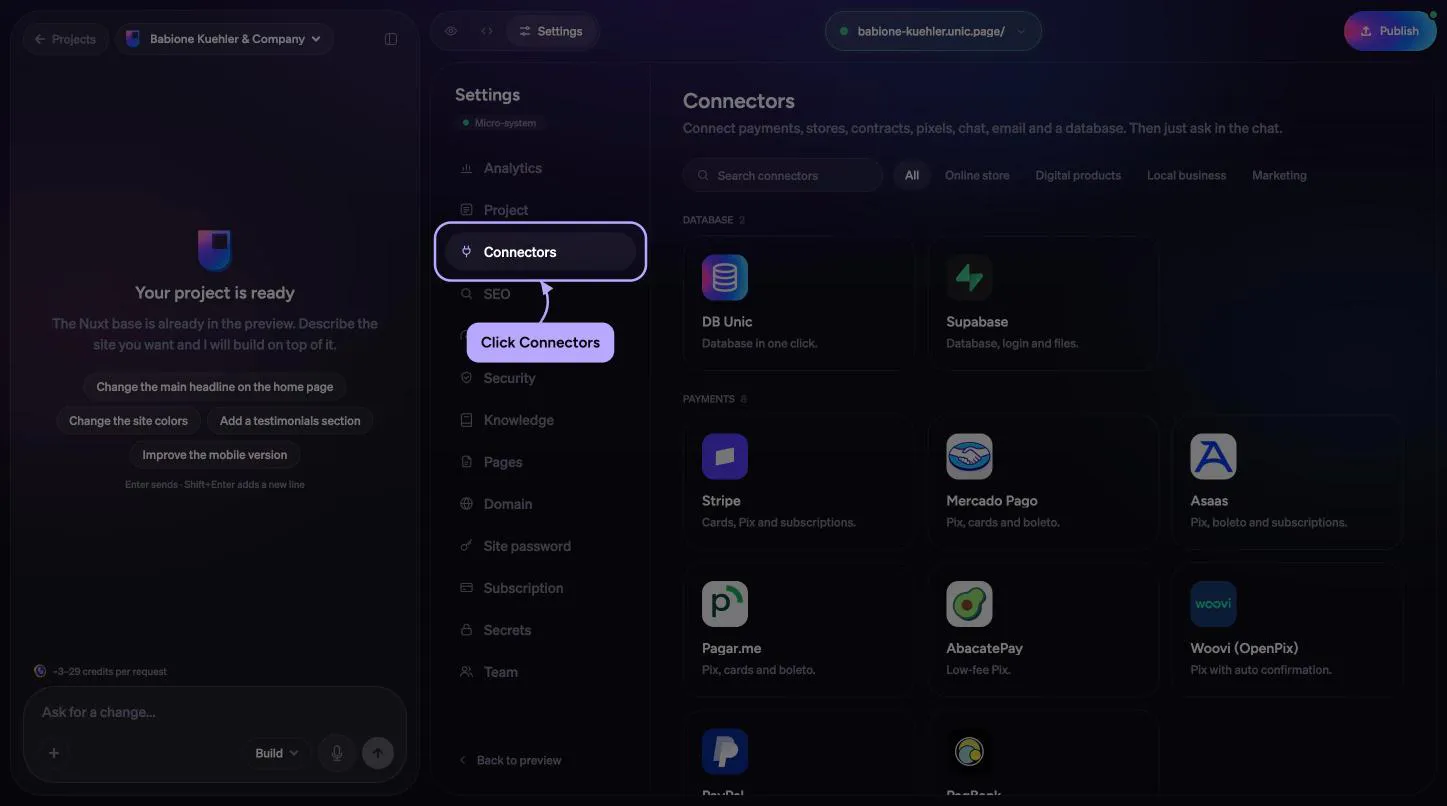 Connectors live in Settings, Connectors.
Open the site in the editor, click Settings and then Connectors.
1. Find the tool
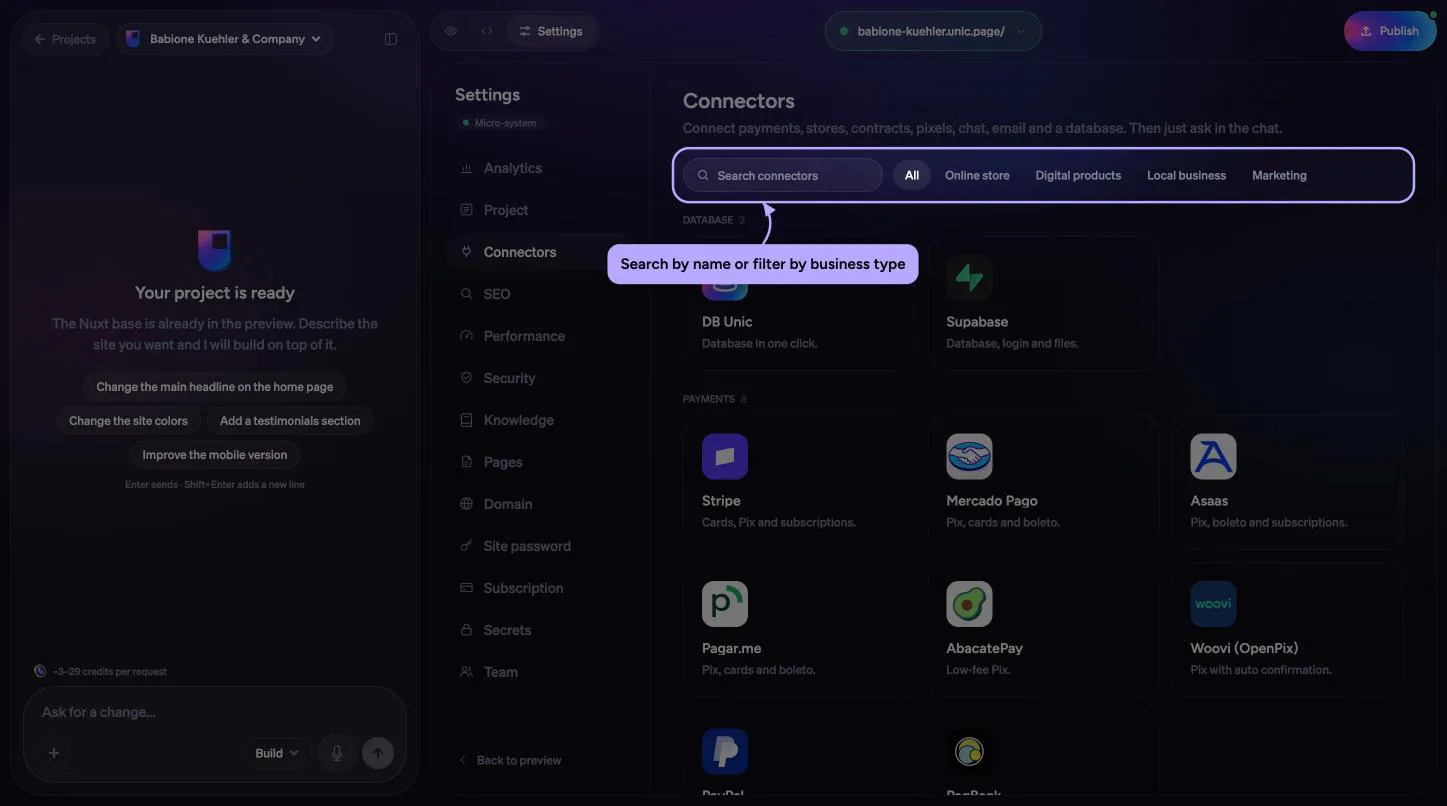 Search by name or filter by business type.
Use Search connectors or the filters All, Online store, Digital products, Local business and Marketing. Once you connect one, the Active filter shows up too. Click the tool's card.
2. Fill in and test
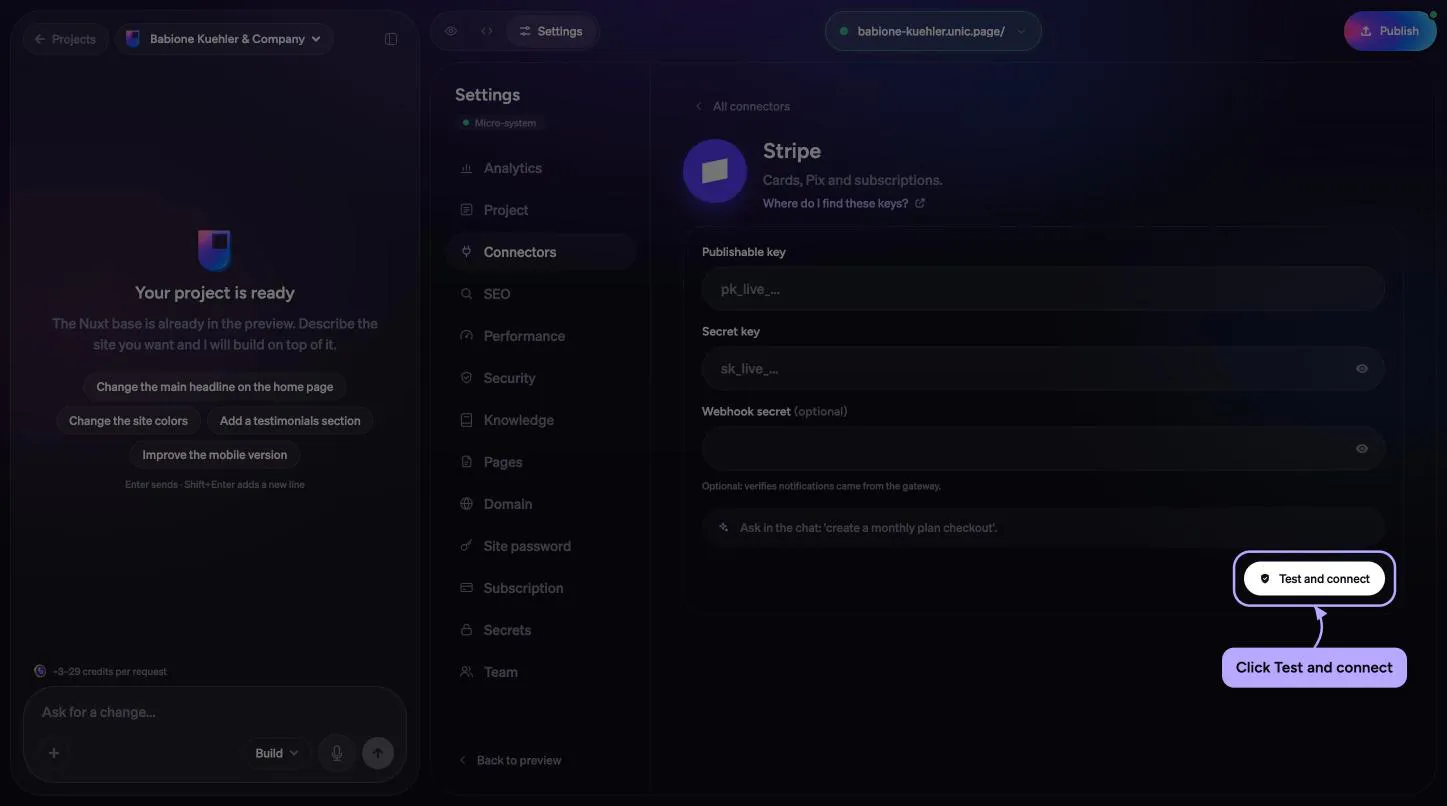 Test and connect checks your details before turning it on.
- Click Where do I find these keys? to open the official page where the details live.
- Fill in the fields. Fields marked (optional) can stay blank.
- Click Test and connect. Unic checks the details with the tool, without creating charges or orders. If it works, you see Connection working and the card gets the Connected badge.
Below the fields you'll see an example of what to ask, like "Ask in the chat: 'create a checkout for the monthly plan'".
After it's connected
- Test connection: checks again that your keys are still valid.
- Save changes: updates a value. Secret fields show Stored: leave them blank to keep the current value.
- Disconnect: asks for confirmation, because whatever depends on the tool stops working.
If you see The AI is working on the site right now, wait for the AI to finish the request and try again.
Public and secret fields
Pixel IDs and publishable keys go to the browser, because they have to. Secret keys, tokens and webhook secrets stay on the server only. See Secrets and Connectors that turn your site into a Micro-system.
Was this article helpful?